Your cart is currently empty!


Step 1: Get the WordPress Example Code
1. Visit the NavTalk Samples GitHub repository
2. Enter the WordPress folder
3. Download the demo.html file
Note: The WordPress version of the demo.html file includes an IIFE (Immediately Invoked Function Expression) wrapper, which helps avoid global variable conflicts and ensures stable operation within the WordPress environment.
Step 2: Register an Account and Obtain the API Key
1. Visit the NavTalk Console
2. Create an Account: Click “Create an Account” or sign up using your Google email, then complete the registration and log in.
3. Obtain the API Key:
▪️ After logging in, go to the Console
▪️ Navigate to the Projects section
▪️ Generate a new API key or use an existing one
Important: Please securely store your API key, as it will be required for future configurations.
Step 3: Add Code in the WordPress Site Editor
Example Scenario: Adding Digital Human Functionality to the Site Editor Page
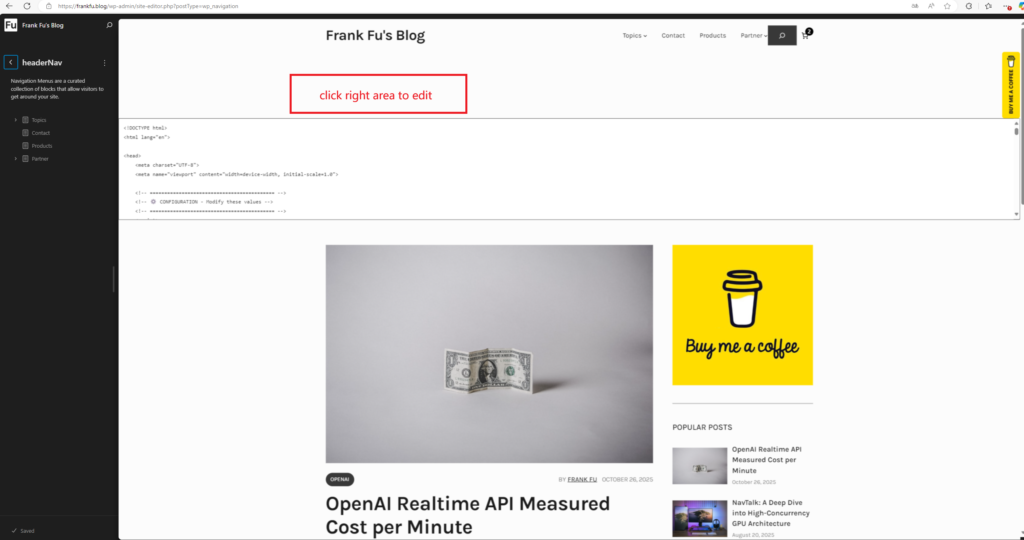
1. Log in to the WordPress admin panel and access the site editor.
▪️ For example: visit https://yourdomain.com/wp-admin/site-editor.php
▪️ Or go through the admin menu: Appearance → Editor

2. Select the target template or page.
▪️ In the left-hand template list, choose the template you wish to edit (e.g., page template, homepage template, etc.).
▪️ Or create a new template.
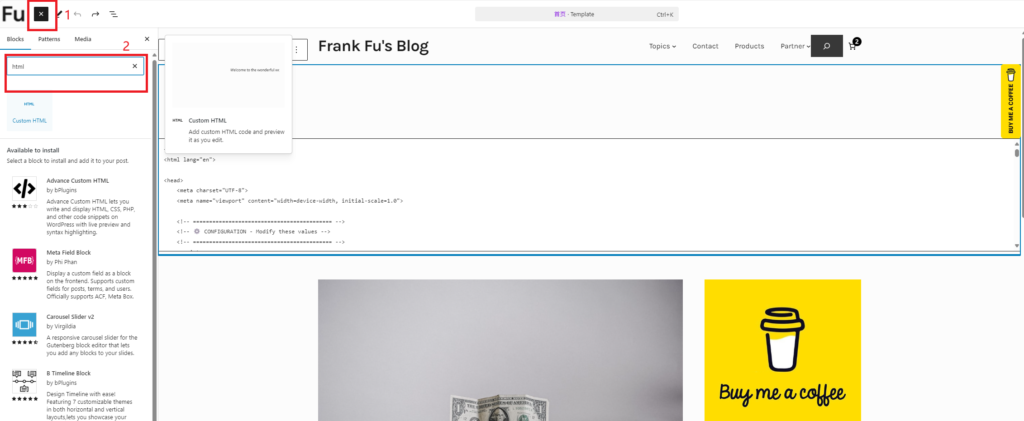
3. Insert an HTML block.
▪️ Click the “+” in the editor to add a new block.
▪️ Search for and select the “Custom HTML” or “HTML” block.
4. Paste and configure the code.
▪️ Copy the full code from the downloaded demo.html file and paste it into the HTML block.
▪️ Important Configuration: Find and modify the following configuration parts in the code:
        // ✒️ API Key - Your NavTalk API key
        window.NavTalkConfig.API_KEY = window.NavTalkConfig.API_KEY || "sk_navtalk_your_api_key";
5. Save Changes
▪️ Click the “Save” button in the top right corner
▪️ Preview the page to confirm that the digital human is displayed correctly
Step 4: Test the Call Functionality
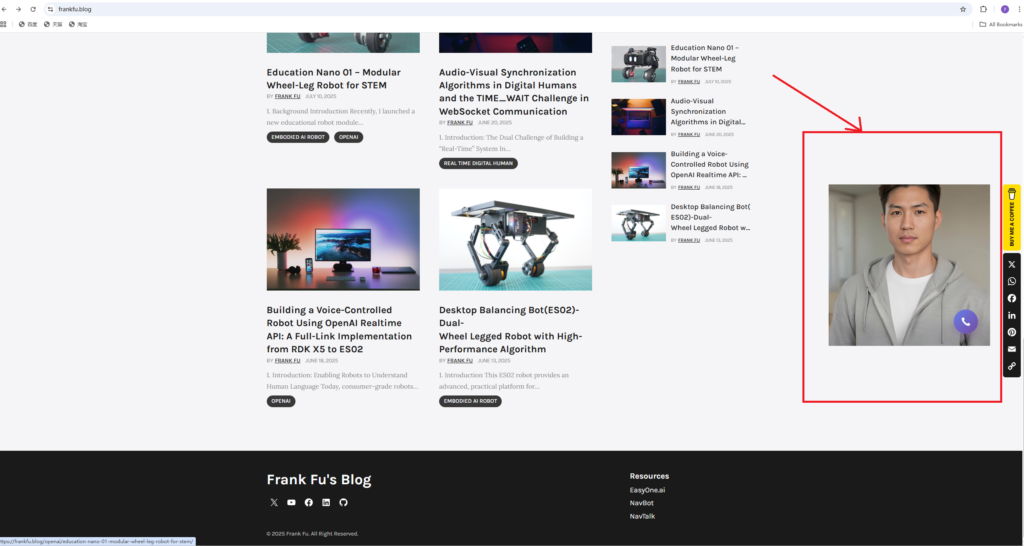
After saving, visit the page, and you will see the digital human interface along with the call button. Click the call button to start a real-time voice conversation with the digital human.






Leave a Reply